 MediaBlaster
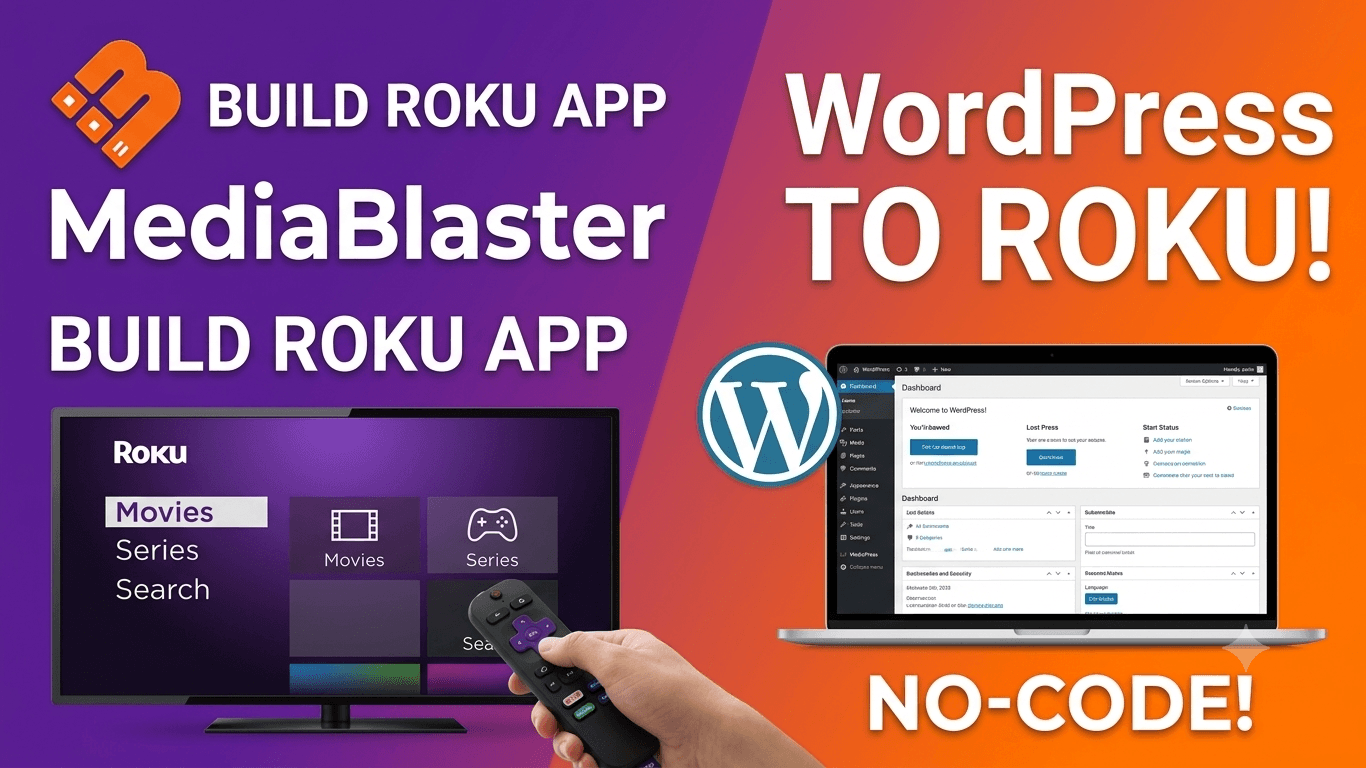
Learning to build a custom Roku app has gotten a lot easier now that you can use AI tools like Codex, Claude Code and Cursor.
Nearly a decade ago, I published a video showing how to build a Roku channel in about 15 minutes. It became the most popular tutorial on our channel, accumulating over 41,000 views.
However, TV streaming technology and Roku development have changed dramatically since then. The old methods simply don’t cut it for today’s app store requirements.
That’s why we completely rebuilt the process from the ground up. In this guide, you’ll learn how to build, test, and publish a professional, custom-branded Roku TV app powered directly by your WordPress website—without writing a single line of BrightScript code.
Want to build a Roku app with AI? Check this tutorial!
🎬 Watch the Full Video Tutorial
Before diving into the step-by-step breakdown below, check out the complete video walkthrough:
💡 How the WordPress + Roku System Works
When people hear “build a Roku app without code,” they often assume Roku has a magical push-button builder. In reality, Roku apps still require native code under the hood—you just don’t have to write it yourself.
Instead of building an app from scratch, you use a pre-built Roku App Template connected to WordPress via the free MediaBlaster plugin.
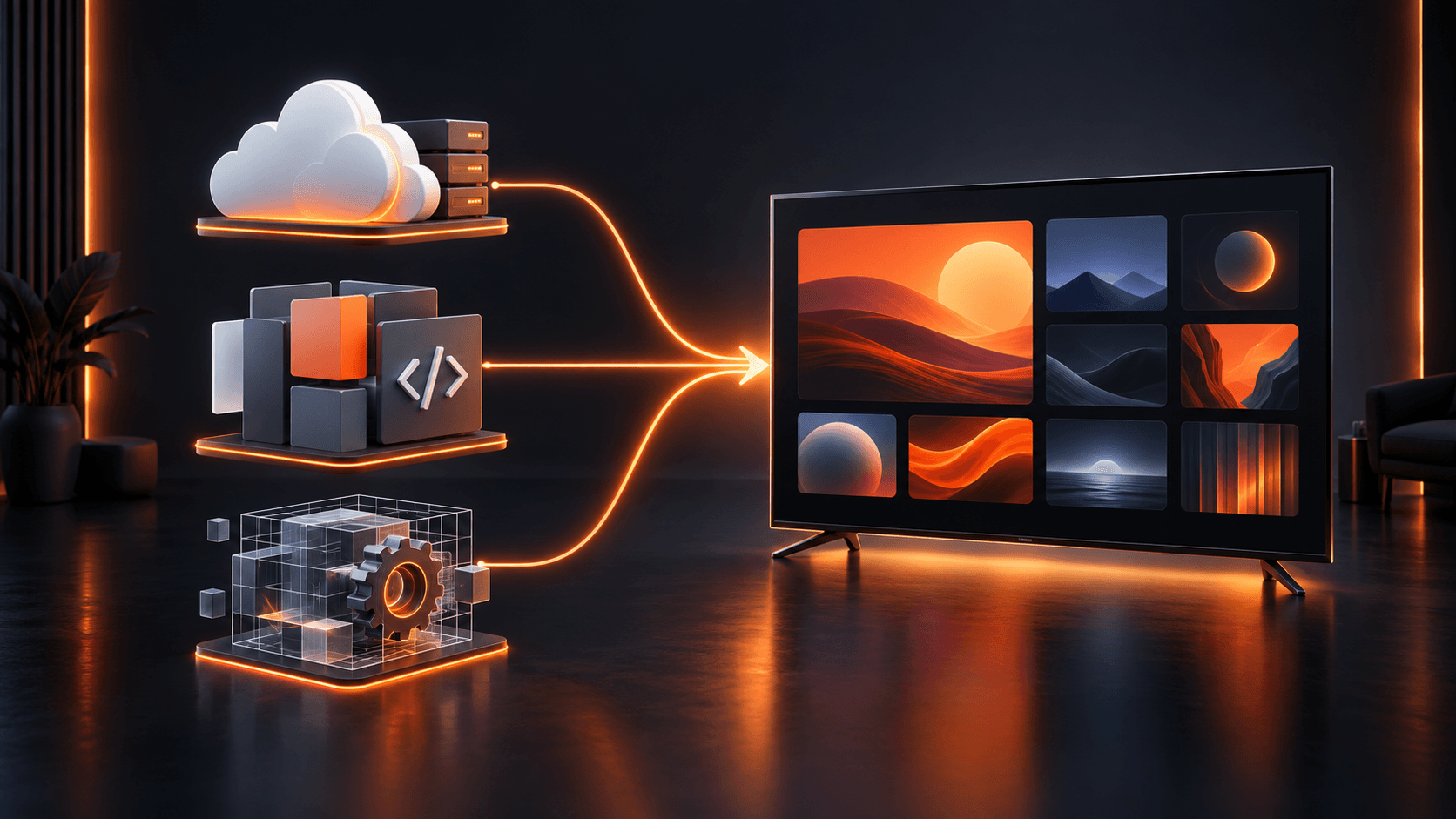
[ Your Video Host ]  --->  [ WordPress + MediaBlaster ]  --->  [ Custom Roku App ]
  (Bunny, AWS, etc.)           (Content Management)             (TV Streaming UI)
The Workflow:
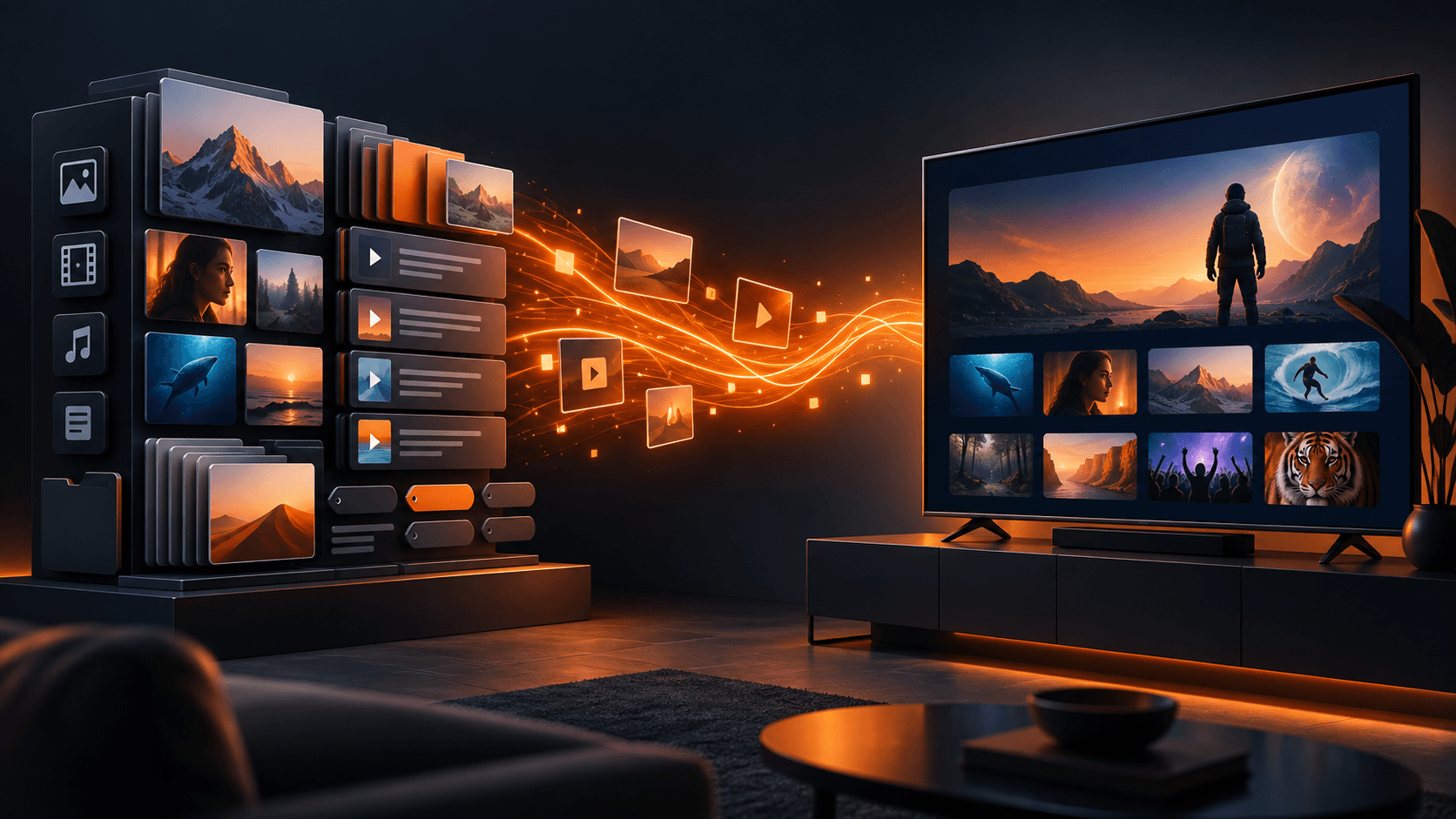
- WordPress is your Content Hub: You manage all your movies, TV series, episodes, posters, descriptions, and video stream links inside the WordPress dashboard.
- MediaBlaster handles the feed: The plugin organizes your media metadata into a structured feed that Roku understands.
- The Roku App fetches the data: The app connects to your website, retrieves the latest content, and displays it in a clean TV interface.
Key Benefit: Once your app is published, you never have to re-code or rebuild the Roku app when adding new videos. Simply publish a new post in WordPress, and it updates automatically on TV screens worldwide!
📋 What You Need to Get Started
Before launching your channel, make sure you have the following pieces in place:
- WordPress Website: Any standard self-hosted WordPress site.
- MediaBlaster Plugin: Our free plugin that turns WordPress into a streaming media backend.
- Video Hosting: A streaming provider suitable for high-bandwidth TV playback (e.g., Bunny.net, Vimeo, or Amazon AWS).
- Roku Developer Account: Free to set up at developer.roku.com.
- Physical Roku Device: A Roku TV or streaming stick connected to your local network for developer testing.
- Roku App Template / Launch Kit: The native codebase pre-configured to sync seamlessly with MediaBlaster.
🚀 Step-by-Step: From WordPress to Smart TV
Step 1: Install the Free MediaBlaster Plugin
In your WordPress admin dashboard, navigate to Plugins > Add New, search for MediaBlaster, install it, and click Activate. This will unlock specialized post types (Movies, Series, Episodes) and custom settings built specifically for TV streaming apps.
Step 2: Add Your Content & Media
Open the Movies or Series tab in WordPress and click Add New:
- Enter your title, description, and genres.
- Upload high-resolution posters and hero images under Featured Image.
- Paste your video stream URL (HLS
.m3u8or.mp4). - Set content ratings, runtime, and release year.
- Click Publish.
Step 3: Enable Roku Developer Mode
To sideload and test your app on a physical Roku device before making it public, you must enable Developer Mode on your Roku remote:
🎮 Roku Remote Secret Combo:
- Press Home 3 times
- Press Up 2 times
- Press Right → Left → Right → Left → Right
Follow the on-screen prompts on your TV to accept the agreement, set a developer password, and reboot the device. Make note of the IP address shown on screen!
Step 4: Sideload & Test the App
- Open a web browser on a computer connected to the same Wi-Fi network as your Roku.
- Enter the Roku device’s IP address in your browser address bar.
- Log in with the username
rokudevand the password you created in Step 3. - Upload your compiled Roku app
.zipfile and click Install. - The app will immediately launch on your TV screen!
Step 5: Test Deep Linking & Debugging
Before submitting your channel to the public Roku Channel Store, test everything thoroughly:
- Playback: Ensure videos start smoothly and fast-forward/rewind work properly.
- Remote Navigation: Verify that menu buttons and focus states behave as expected.
- Deep Linking: Use Roku’s Deep Linking Tester to confirm that search queries and featured content land directly on the correct media details screen.
⚖️ Development App vs. Published App: Understanding the Difference
It’s crucial to understand that sideloading an app onto your Roku device is only for testing.
| Feature | Development App (Sideloaded) | Published App (Channel Store) |
| Access | Only on your local testing device | Available to millions of Roku users worldwide |
| Visibility | Hidden from search & channel store | Listed publicly in the Roku Channel Store |
| Review Process | None (Instant local install) | Requires Roku approval & automated testing |
| Updates | Manual reload via browser | Managed automatically through Roku Developer Dashboard |
To go live publicly, you’ll complete Roku’s official submission wizard, where you provide channel store artwork, privacy policies, content ratings, and support information.
🎯 Who Is This Solution For?
This WordPress-to-Roku workflow is ideal for content owners who want full control over their brand without paying exorbitant monthly fees to third-party OTT app builders:
- 🎥 Indie Filmmakers & Production Companies: Host your movie catalog or premiere short films.
- ⛪ Churches & Ministries: Broadcast Sunday services, sermons, and ministry archives.
- 🏋️ Course Creators & Fitness Coaches: Deliver video modules directly to living room screens.
- 📺 Niche Streaming Networks: Build ad-supported (AVOD) or subscription-based (SVOD) streaming channels.
🛠️ Ready to Build Your Roku App?
Stop wrestling with complex BrightScript code or paying thousands in recurring software fees.
- 🔌 Download the Free MediaBlaster Plugin: WordPress.org Plugin Directory
- 🚀 Get the Complete Roku Launch Kit: MediaBlaster Roku Launch Kit (Includes pre-built Roku app template, deep-linking setup, and full step-by-step video training)