 MediaBlaster
Building a custom Roku app used to mean hiring a specialized developer or spending weeks learning BrightScript and Roku SceneGraph before you could get anything useful onto a television.
AI changes that starting point.
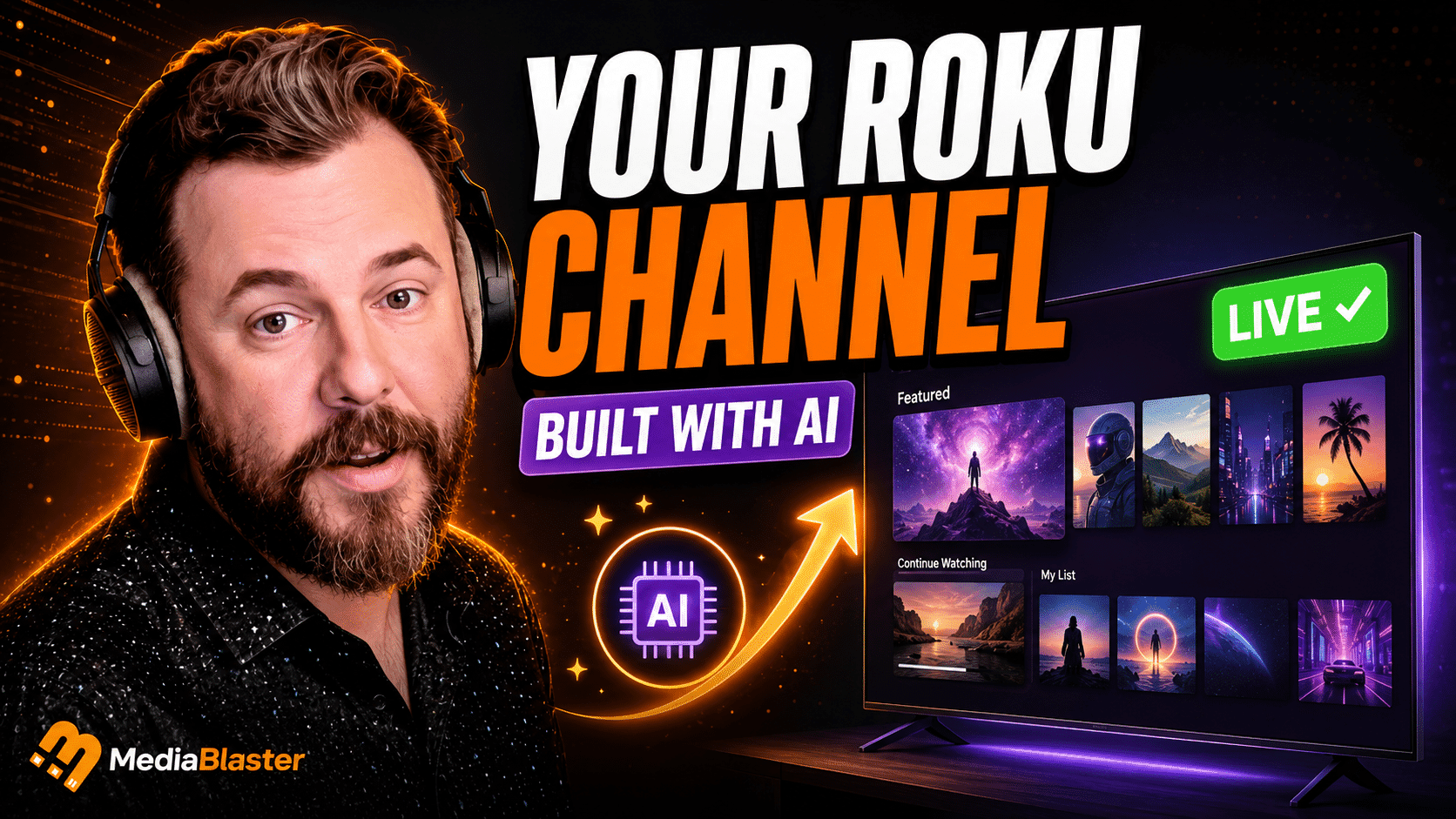
In the video below, I use ChatGPT to build a working Roku movie app connected to WordPress. The AI creates the project structure, writes the BrightScript and SceneGraph files, generates the required artwork, packages the application, and gives us a ZIP file we can sideload onto a real Roku device.
You could follow the same process with Claude, Cursor, or another capable AI coding agent. ChatGPT is simply the tool I use in this tutorial.
The important part is that we aren’t asking AI to invent an entire content system. WordPress and MediaBlaster already provide the content, metadata, app configuration, and API. The AI’s job is to build the Roku experience that sits on top of it.
What We’re Building
For this tutorial, we’re intentionally keeping the app small. It supports the MediaBlaster Movies post type and includes the basic pieces needed for a useful Roku video-on-demand app:
- A branded loading screen
- A grid of movies pulled from WordPress
- Movie artwork, titles, descriptions, and metadata
- A simple movie-details screen
- Native Roku video playback
- Device-local playback bookmarks
- Movie deep linking
- Loading, empty, network-error, and unavailable-content states
- Packaged Roku icons and splash artwork
The app also includes important technical foundations such as Roku’s AppLaunchComplete signal beacon, runtime deep-link handling, and support for captions and trick-play files when MediaBlaster provides them.
This isn’t meant to be a Netflix clone. It is a focused starter app that proves you can connect your WordPress content to a real Roku application without manually writing every line of code yourself.
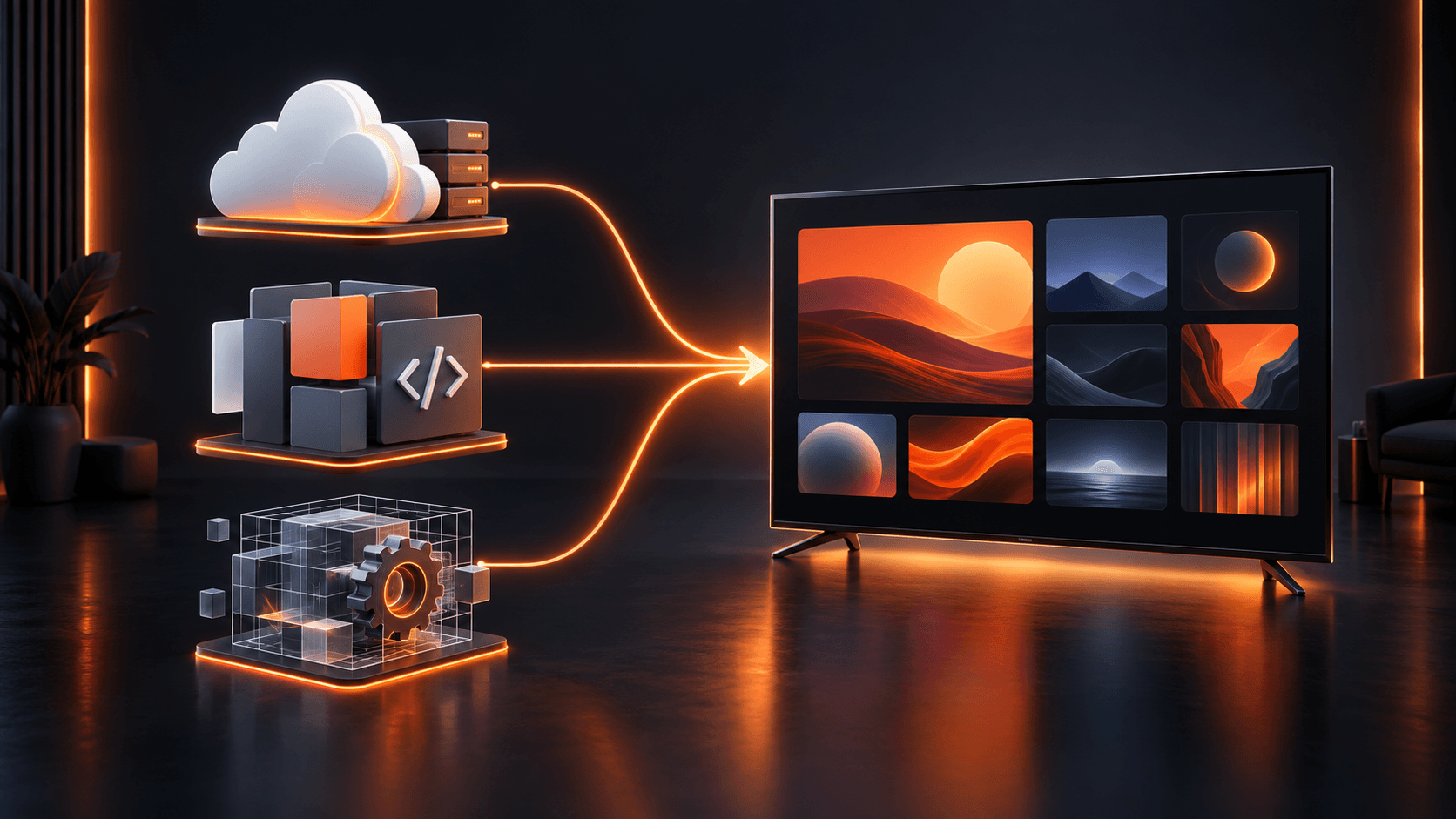
How WordPress, MediaBlaster, and the Roku App Work Together
The system has three main parts.
1. WordPress manages your content
WordPress remains the place where you add and update movies, descriptions, artwork, video URLs, categories, and other information.
You aren’t hardcoding your movie library into the Roku app. When you add or update content in WordPress, the app can retrieve the current information through the MediaBlaster API.
2. MediaBlaster structures the content for apps
The free MediaBlaster WordPress plugin turns WordPress into a structured media CMS. It provides Movies and other media content types, playback metadata, platform-specific App Config settings, and a REST API that connected apps can understand.
MediaBlaster does not host or encode your videos. You still need compatible video hosting and playable HLS, DASH, or MP4 URLs. Vimeo is available as an optional native integration, or you can use another compatible host.
3. AI builds the Roku frontend
The custom Roku application uses SceneGraph and BrightScript to request data from MediaBlaster, turn it into a television interface, and play the selected video.
Instead of writing those files manually, we give the AI a detailed master prompt. That prompt defines the app architecture, API routes, navigation, playback behavior, Roku requirements, error handling, packaging, and verification process.
The result is a real Roku source project—not a mockup or a website displayed on a television.
What You Need Before Starting
You will need:
- A WordPress website with MediaBlaster installed
- At least one published Movie with artwork and a working video URL
- A public HTTPS website and MediaBlaster API
- ChatGPT, Claude, Cursor, or another AI agent that can create files
- A physical Roku device with Developer Mode enabled
- A computer connected to the same local network as the Roku
You do not need to give the AI your WordPress password, Roku developer password, API keys, or other private credentials. The content and App Config routes used by the tutorial are public endpoints.
Step 1: Install MediaBlaster on WordPress
Start by installing the free MediaBlaster plugin from WordPress.org.
After activating the plugin, open the MediaBlaster settings and enable the features you want to use. For this tutorial, the main requirement is the Movies content type.
MediaBlaster includes other capabilities such as Vimeo integration, podcasts, live channels, EPG data, players, and app-ready REST endpoints. We deliberately ignore most of those features here so the first Roku build stays understandable.
Step 2: Add a Movie and Video Source
Create at least one Movie in WordPress and add:
- A clear title
- A description
- Landscape artwork
- A working video URL
- Duration and other metadata when available
The video must be in a format the Roku can play. The tutorial app supports common HLS, DASH, and MP4 sources when they are configured correctly.
Avoid treating normal shared-hosting space as a video streaming platform. Video delivery can use a lot of bandwidth, and a proper video host or CDN will usually provide a much better experience.
Step 3: Configure the Roku App Settings
MediaBlaster’s App Config lets you manage user-facing Roku settings from WordPress. Depending on your setup, this can include:
- App name
- Brand and accent colors
- Background and surface colors
- Navigation labels
- Fallback images
- Support and privacy URLs
- Enabled content features
These settings allow the Roku app to retrieve much of its configuration at runtime. That means you can change supported branding and labels in WordPress without rebuilding the application every time.
Some assets still have to be packaged with the Roku app. Icons and splash screens referenced by the Roku manifest cannot be downloaded from App Config at launch, so the AI creates placeholder versions that you can replace with final branded artwork.
Step 4: Confirm the MediaBlaster API
Your API base URL will normally look like this:
https://yourwebsite.com/wp-json/mediablaster/v3Before asking AI to build anything, open the following endpoints in your browser:
https://yourwebsite.com/wp-json/mediablaster/v3/config?platform=roku
https://yourwebsite.com/wp-json/mediablaster/v3/movies?page=1&per_page=50&orderby=date&order=DESC
You should see JSON data. If you see a login form, HTML error, firewall challenge, or blank page, fix that problem first. The AI cannot build a dependable application against an API it cannot reach or inspect.
Step 5: Give the Master Prompt to Your AI Agent
I’ve made the complete Roku app master prompt available in the MediaBlaster Creator Lab on Skool.
The prompt asks you for four basic values:
- Your app name
- Your MediaBlaster API base URL
- An optional Movie post ID for deep-link testing
- A safe project folder name
Once those values are filled in, submit the entire prompt to your AI coding agent.
The prompt tells the agent to inspect the real API before coding. This is important. Your actual response should determine how fields are mapped; the AI should not make up sample data or assume every MediaBlaster installation returns exactly the same optional fields.
Step 6: Let the AI Build and Verify the Project
A capable coding agent should create the full project rather than stopping at a plan or giving you a collection of disconnected snippets.
The final source project should include:
- The Roku manifest
- BrightScript source files
- SceneGraph XML components
- Packaged PNG artwork
- Packaging scripts for Windows and macOS/Linux
- A setup README
- A manual testing guide
- A Roku publication checklist
- A source ZIP for future editing
- A separate sideload-ready ZIP
Make sure the agent distinguishes between those last two files. The source ZIP contains the full editable project. The sideload ZIP contains only the files Roku needs, with the manifest at the root of the archive.
Step 7: Sideload the App on a Roku
AI can review the files and catch many structural problems, but it cannot honestly guarantee that the app works on your hardware unless it has access to your Roku—which it normally will not.
You still need to:
- Enable Developer Mode on your Roku.
- Open the Roku Development Application Installer from a browser on your network.
- Upload the sideload-ready ZIP.
- Install and launch the app.
- Open the Roku debug console to watch for errors.
- Test navigation and playback with the physical remote.
This physical-device test is where you catch problems involving focus, remote behavior, stream compatibility, image loading, performance, and device-specific playback.
Step 8: Test More Than the Home Screen
Seeing the movie grid is a good start, but it doesn’t prove the application is ready.
At a minimum, test:
- Normal cold launch
- App Config and movie loading
- Directional navigation and visible focus
- Opening and closing movie details
- Starting and stopping playback
- Playback bookmark saving and resuming
- Missing artwork and missing media URLs
- Network failure and Retry behavior
- Cold-launch movie deep links
- Deep links received while the app is already open
- Back-button behavior from every screen
- HD and FHD layouts
For a public video app, deep linking isn’t just a nice feature. Roku’s current documentation says public apps with video content must implement deep linking, and the certification process requires you to provide sample parameters for the media types your app supports.
What “No Coding Required” Really Means
You do not need to sit down and manually learn enough BrightScript to write the entire app from a blank folder. The AI can generate the code, explain it, find errors, and make revisions.
That said, AI does not remove every technical responsibility.
You still need to:
- Supply working content and video hosting
- Configure WordPress and MediaBlaster correctly
- Review what the AI produces
- Test on real Roku hardware
- Replace placeholder artwork
- Follow Roku’s current publishing and certification requirements
- Fix issues uncovered during testing or review
The best way to think about AI is as a very fast development partner. It makes custom Roku development far more approachable, but you are still responsible for the app you publish.
Building From Scratch vs. Using the Roku Launch Kit
This tutorial is useful because it shows what is possible from a detailed prompt and a clean MediaBlaster API. It is also a good way to understand how the pieces connect.
However, generating a basic app from scratch is not always the best path for a serious launch.
| AI tutorial build | MediaBlaster Roku Launch Kit |
|---|---|
| Basic Movies-focused starter app | Established Roku VOD app foundation |
| Designed for learning and experimentation | Designed to shorten the path to a branded launch |
| Requires more AI iteration and debugging | Includes a working source-code starting point |
| Simple grid and details experience | More polished navigation, browsing, featured content, and search |
| You develop your own customization process | Includes setup training, AI customization prompts, and a launch checklist |
| Best for proving the concept | Best when you want to move toward a real channel faster |
The MediaBlaster Roku Launch Kit connects to the same WordPress and MediaBlaster foundation, but you begin with a more complete Roku application instead of asking AI to invent every screen and interaction from zero.
You receive the source code, so the app remains yours to customize. The Launch Kit is not a hosted OTT service and does not add a required monthly MediaBlaster platform fee. You still control your WordPress site, media hosting, Roku developer account, and app.
If your goal is to learn, experiment, or prove that the connection works, build the tutorial app. If your goal is to launch a polished channel or create Roku apps for clients, the Launch Kit will usually be the more practical starting point.
Can This App Be Published in the Roku Streaming Store?
It can become the foundation of a public Roku app, but source code alone never guarantees approval.
Roku requires public apps to meet its current design, performance, deep-linking, artwork, accessibility, content, legal, and certification requirements. You will also need appropriate rights to your content, store metadata, support information, a privacy policy, required screenshots and artwork, and testing across suitable Roku devices.
Roku provides Static Analysis and App Behavior Analysis tools in the Developer Dashboard. A serious public launch should use those tools and the current Roku certification criteria rather than assuming that a successful sideload is the end of the process.
The tutorial gets you to the point where you have something real to test. Publishing is the next phase.
Start Building Your Roku Channel
You now have three ways to move forward:
- Download the free MediaBlaster plugin and start organizing your video library in WordPress.
- Join the MediaBlaster Creator Lab to get the complete AI master prompt, follow the tutorials, and ask questions as you build.
- Explore the MediaBlaster Roku Launch Kit if you want to begin with a polished Roku app foundation instead of starting from a blank project.
The biggest change AI brings to Roku development is not that every technical requirement disappears. It is that creators, businesses, churches, educators, filmmakers, and agencies can now get from an idea to a working app prototype without spending months learning a specialized language first.
Start small. Get one movie loading. Get it playing on a real Roku. Learn how the pieces connect. Then decide how far you want to take it.