 MediaBlaster
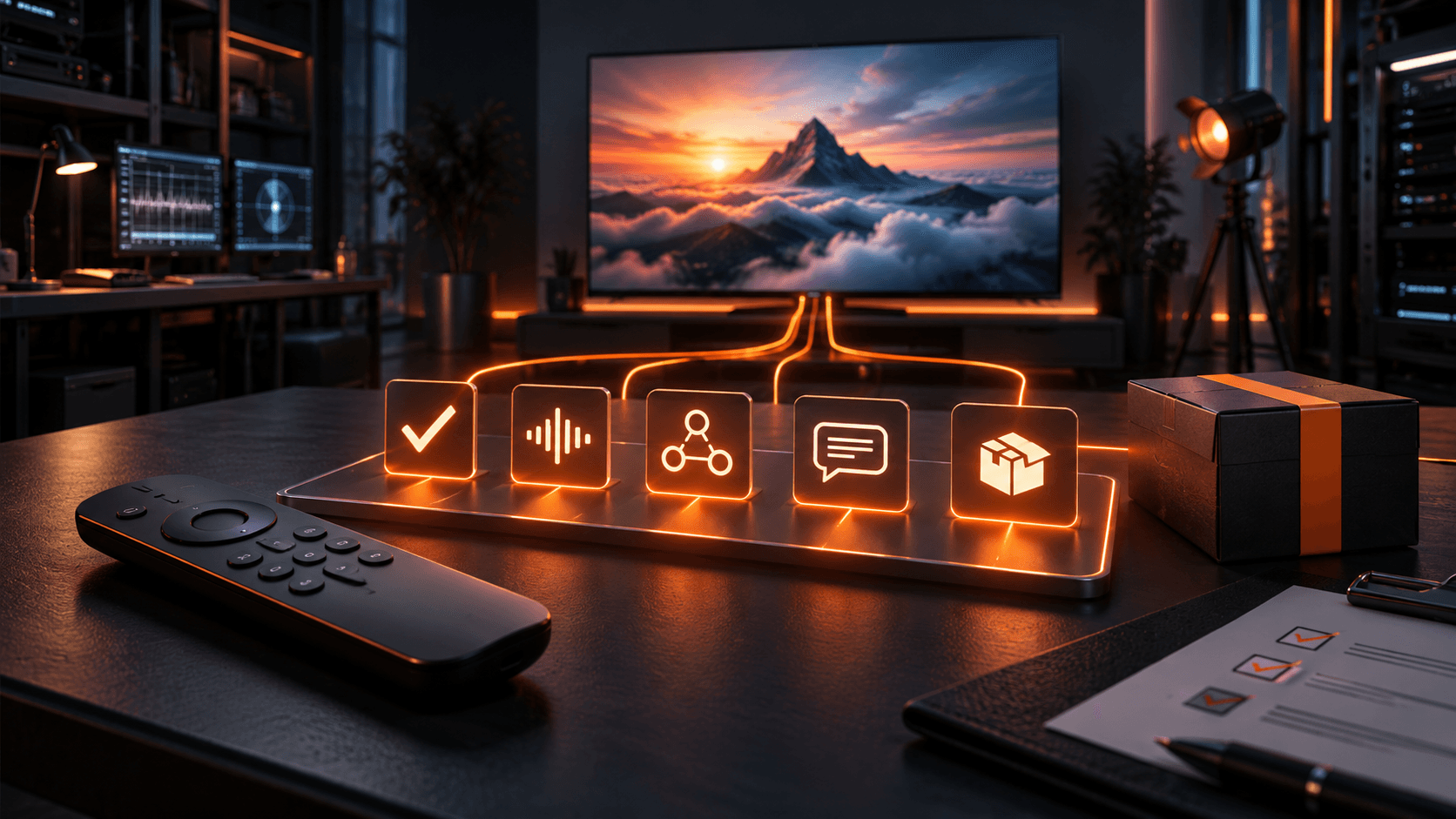
A Roku app that works on one developer’s device is not automatically ready for the public Streaming Store. Public apps must pass Roku certification and review. The practical work is testing the viewer experience, the technical edge cases, the required submission material, and the exact behavior Roku evaluates today.
Use this checklist as a pre-submission workflow. Run it before you package the release, then repeat the affected sections whenever code, catalog rules, hosting, or delivery providers change.
1. Start with the current Roku requirements
Read Roku’s current certification criteria, app publishing guide, and deep-linking documentation before you begin final QA. Requirements can change, and a historical blog post or a prior approved channel is not a substitute for the current rules.
Public-app certification is different from beta distribution. A beta is useful for collecting feedback and checking your setup with a limited group, but Roku’s publishing guide states that public apps must pass certification. Plan a real public-release test cycle.
2. Test on representative Roku hardware
Test on physical Roku devices, not only a development workflow. Include at least one device that reflects the lower end of the hardware your viewers are likely to own and one current device. If your channel targets Roku TV sets as well as streaming players, test both where possible.
Use more than one network condition. Test a strong home connection, a slower connection if you can simulate it, and a temporary interruption. Record the device model, Roku OS version, app build, test account, content item, and result so a developer can reproduce a failure.
3. Test installation, launch, and remote navigation
Confirm that the installed package launches cleanly from the Roku home screen. On launch, the interface should become usable promptly and show a clear loading state if content is still arriving. Test fresh install, relaunch, and resume after leaving the app.
Use the physical remote to verify every directional path. Check initial focus, Up, Down, Left, Right, Select, Back, and Home from every major screen. Repeated quick presses should not create a dead focus state, dismiss a screen unexpectedly, or send the viewer somewhere unrelated.
Test the empty states as aggressively as the happy path. What happens when the catalog is empty, a category has no titles, an image is missing, the API times out, a title is unavailable, or the user backs out during loading? A useful app explains the problem and gives the viewer a way to recover.
4. Test every content and playback path
Open a movie, an episode, a series, and each content type you declare. Confirm titles, descriptions, season and episode order, posters, backgrounds, duration, ratings or labels where applicable, and the intended related or next-content behavior.
For each representative stream, test initial playback, seeking, pause, resume, exit, replay, end-of-content behavior, audio, video quality, and recovery from an invalid or unavailable URL. Include short and long content, a newly published item, a removed item, and an item with intentionally broken data in a controlled test environment.
If captions or subtitles are offered, test every advertised language, enable and disable them from Roku settings, and verify timing, readability, and behavior after seek. Do not publish a captions claim based only on a test file that happened to work once.
5. Test deep links as their own feature
Deep-link behavior must be tested independently of normal browsing. Use Roku’s Deep Linking Tester or the documented device test methods. Test a cold launch to a valid movie or episode, a request received while the app is already running, a series or season path if you support it, an invalid content ID, and content that is no longer playable.
A passing deep link does more than land on the correct screen. For a playable item, validate the end state Roku requires. Make sure bad links fail safely without an empty player, a frozen spinner, or an unrecoverable screen. MediaBlaster’s deep-linking guide covers the practical cases that came up during a 2026 public-channel launch.
6. Check content, metadata, and channel artwork
Review your Store listing and in-app metadata as a viewer would. Confirm the app name, description, category, contact details, privacy policy, screenshots, and all required artwork. Open the app on a television and check that posters and backgrounds are clear, nontransparent where required, and not cropped or unreadable.
Audit the catalog too. No placeholder titles, unfinished descriptions, duplicate rows, broken artwork, draft videos, unexpected content order, or stale featured items should reach the public app. The Series and Episodes documentation includes useful guidance on consistent episode numbering.
7. Run technical preflight checks
Package the exact build you intend to submit. Do not test one ZIP and upload another. Run Roku’s available static analysis and App Behavior Analysis tools, fix reported issues, then rerun them after every meaningful change. Keep the results with the release record.
Confirm production endpoints, security settings, API keys, ad settings, analytics configuration, error logging, and any required test credentials. Remove development-only URLs, debug overlays, test ads, placeholder icons, and hard-coded credentials before packaging.
8. Prepare the submission
Make sure the person submitting the app has access to the correct Roku developer account and understands who will receive certification questions. Gather the package, listing copy, artwork, support contact, privacy-policy URL, test steps, any required test credentials, and your final test record.
If Roku returns a failure, do not treat the message as a vague rejection. Reproduce the exact sequence on hardware, identify whether the issue is launch, focus, navigation, playback, data, artwork, advertising, deep linking, or packaging, then retest the smallest fix. MediaBlaster’s certification case study documents failures that can be invisible during ordinary browsing.
A final one-page sign-off
Before submission, the release owner should be able to answer yes to each of these: the build on hardware is the build being uploaded; every major navigation path works with the remote; representative content plays and fails safely; captions work if promised; deep links are tested if applicable; the store listing and artwork are complete; provider endpoints are production-ready; and a named person owns the Roku developer account and the first round of support.
If you are launching a WordPress-powered channel, pair this checklist with the MediaBlaster certification checklist and Roku Launch Kit setup guidance. They help keep content preparation, app testing, packaging, and submission in one repeatable workflow.
Can I test a Roku app before certification?
Yes. Use developer tools and beta distribution to test before public submission. Beta apps do not go through the public-app certification process, so retain a separate final QA cycle before publishing publicly.
What causes Roku certification failures?
Common failure areas include launch performance, remote focus and navigation, playback errors, deep-link handling, missing artwork or metadata, advertising requirements, and behavior when content is unavailable. Use the current criteria and your own test record rather than guessing.
Do I need a Roku device to test a Roku app?
You should test on physical Roku hardware before publishing. It is the only reliable way to verify remote behavior, device performance, artwork readability, and real playback conditions.